Add the first programming key and attach an administrator to it
To deploy and manage a customer system you will need to create a customer system-specific programming key, and attach an administrator to it.
Note: We recommend having a minimum of three programming keys that have been programmed and attached to administrators in each customer system. This ensures there are enough programming keys in case of damage or loss.
Select Programming keys > Manage programming keys
Step 1/3: Programming key
- Select
 and enter the required information:
- Label: Enter the label printed on the back of the programming key.
- Administrator: Assign an administrator for the programming key. At least one must be selected but you can also attach multiple administrators.
- Select Next.
Step 2/3: Summary
- The summary shows the actions that you decided to perform in the previous steps. Review the summary and select Confirm.
Step 3/3: Feedback
- In this final step, the actions you confirmed in the previous step will be performed. You can follow the actions and their progress on the screen.
- Connect an empty programming key to the USB port of your PC with an USB cable.
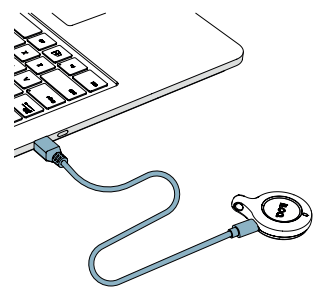
- Follow the on-screen instructions.
- Select Show summary to view an overview of the performed actions.
- When you’re done select Close.