


Lock status confirmation
The locking system administrator may set a lock status confirmation requirement for the locking system, which means that when opening certain types of locks the status of the lock must be confirmed. There are two types of lock status confirmations:
- User confirmation
- Lock confirmation
User confirmation
When user confirmation is in use, when opening or closing locks that require user credentials for both opening and closing (e.g., certain padlocks), you will be asked to manually confirm which action (opened or closed) you performed. To confirm, select the correct option on the display.

Lock confirmation
When lock confirmation is in use, the key holder will be asked to read the lock status after each closing event for H50S.x51 and H50S.x61 padlocks. When opening a lock, the status is read automatically by the app and it does not need to be read separately.
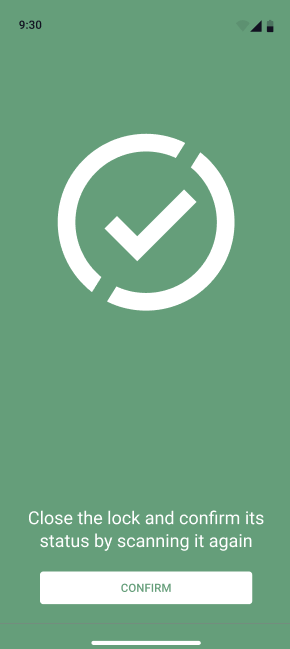
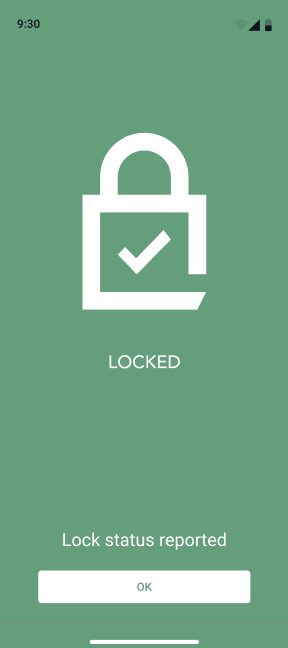
Lock confirmation when locking H50S.x51 padlocks (locking with user credentials)
- Use your phone key to lock the padlock.
- Wait for the countdown timer to to finish.
- Select Confirm, and scan the lock with the app.
- Lock status reported will be displayed when the status has been confirmed.
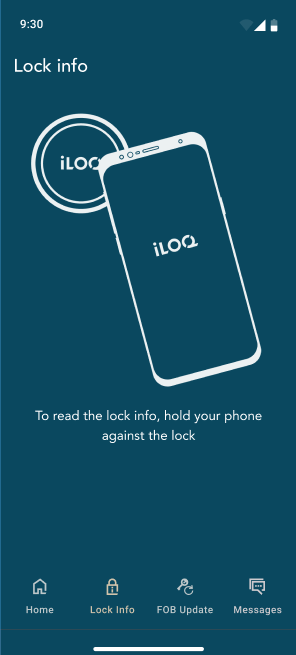
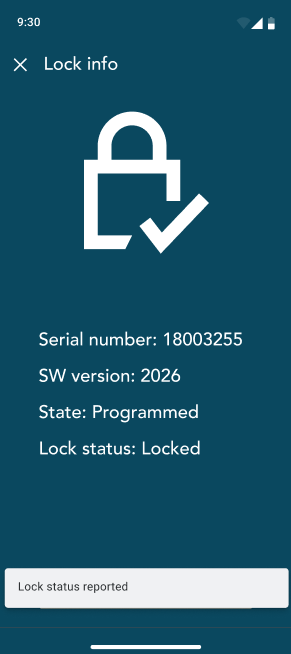
Lock confirmation when locking H50S.x61 padlocks (locking without user credentials)
- Close the padlock.
- Select Lock info from the home view of the app.
- Read the lock status by placing the bottom of the padlock against your phone’s NFC area.
- Lock status reported will be displayed when the status has been confirmed.
- PreviousNFC finder
- NextKey expiry intervals
