Using Single Sign-on at Login

This section describes how to use single sign-on for logging in to iLOQ Locking System.

Proceed as follows.

  1. On Windows, select Start > All Programs > iLOQ > iLOQ Manager.

    The login screen is opened.

    Figure 1. Login Screen
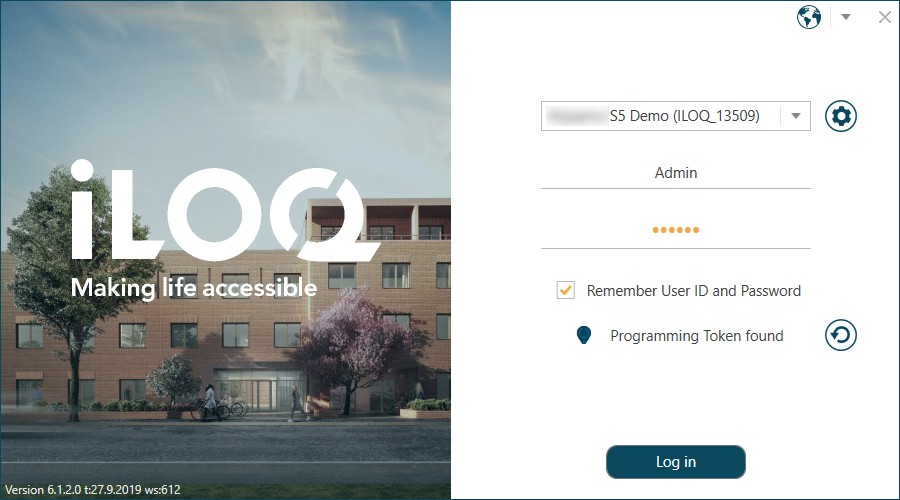
    Login Screen

  2. Click the settings wheel button.

    The settings screen is opened.

    Figure 2. Settings Screen
    Settings Screen

  3. Select the Single sign-on (SSO) check box.
  4. Press the Save button.
  5. Click the arrow-left button to return to the login screen.
  6. Select Sign in with Microsoft to login.

Can’t find what you are looking for?

Send a support request, and you will be connected to our expert
