Program locks
Program locks with a programming key. In this step, the locks added and saved as drafts earlier are programmed.
Note: Locks must be programmed before they can be taken into use.
Select Locking devices > Program devices
Step 1/4: Devices
- Select the locks you want to program.
- Select Next.
Step 2/4: Action
- Select Program devices.
- Select Next.
Step 3/4: Summary
- The summary shows the actions that you decided to perform in the previous steps. Review the summary and select Confirm.
Step 4/4: Feedback
- In this final step, the actions you confirmed in the previous step will be performed. You can follow the actions and their progress on the screen.
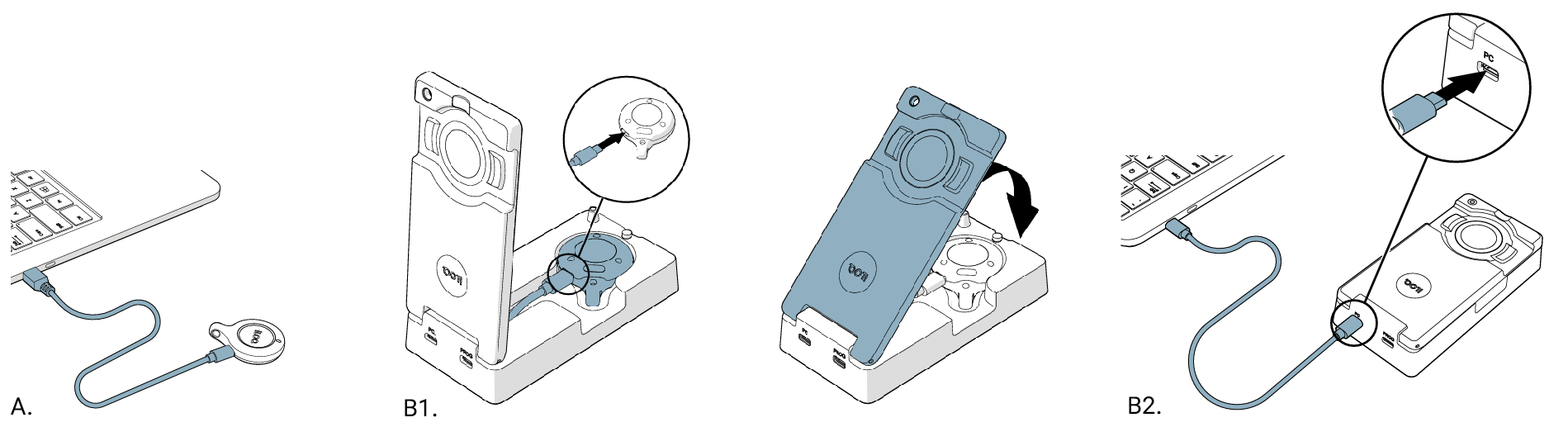
- Connect your programming key to the USB port of your PC. There are two ways to do this:
- Connect the programming key directly to the PC with a USB cable (image A.).
- Connect the programming key to the PC via a programming adapter. First connect the programming key to the adapter (image B1.), and then connect the adapter to your PC with the USB cable (image B2.).
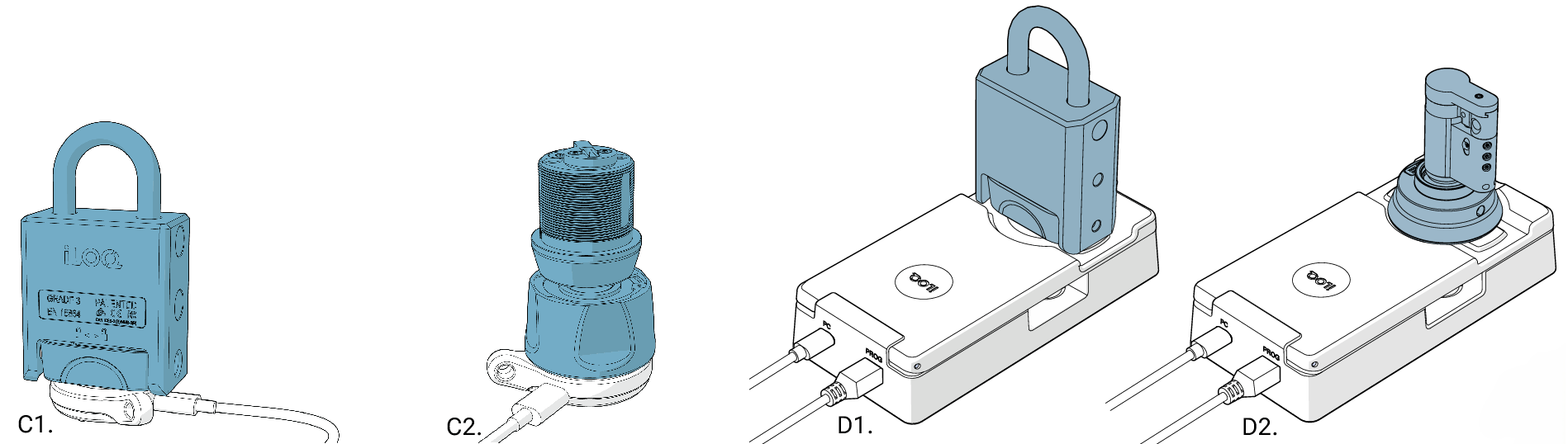
- After this you’ll be instructed to place empty locks one-by-one against the programming key until all are programmed. There are two ways to do this:
- Place the lock directly on the programming key (image C1 and C2.).
- Place the lock on the programming adapter (image D1. and D2.).
- Follow the on-screen instructions until all the locks are programmed.
- Select Show summary to view an overview of the performed actions.
- When you’re done select Close.
- AnteriorHow to deploy a customer system
- SiguienteProgram locks