Temporary access codes
Temporary access codes allow you to grant access to an individual or a group of people without requiring them to create an iLOQ ID. Access is granted using a temporary code, making this function suitable for short-term or occasional access needs. You can define the locking devices that can be unlocked with the code and set how long the code remains valid.
Note: Temporary access codes can only be used with doors equipped with an iLOQ NFC reader with a keypad.
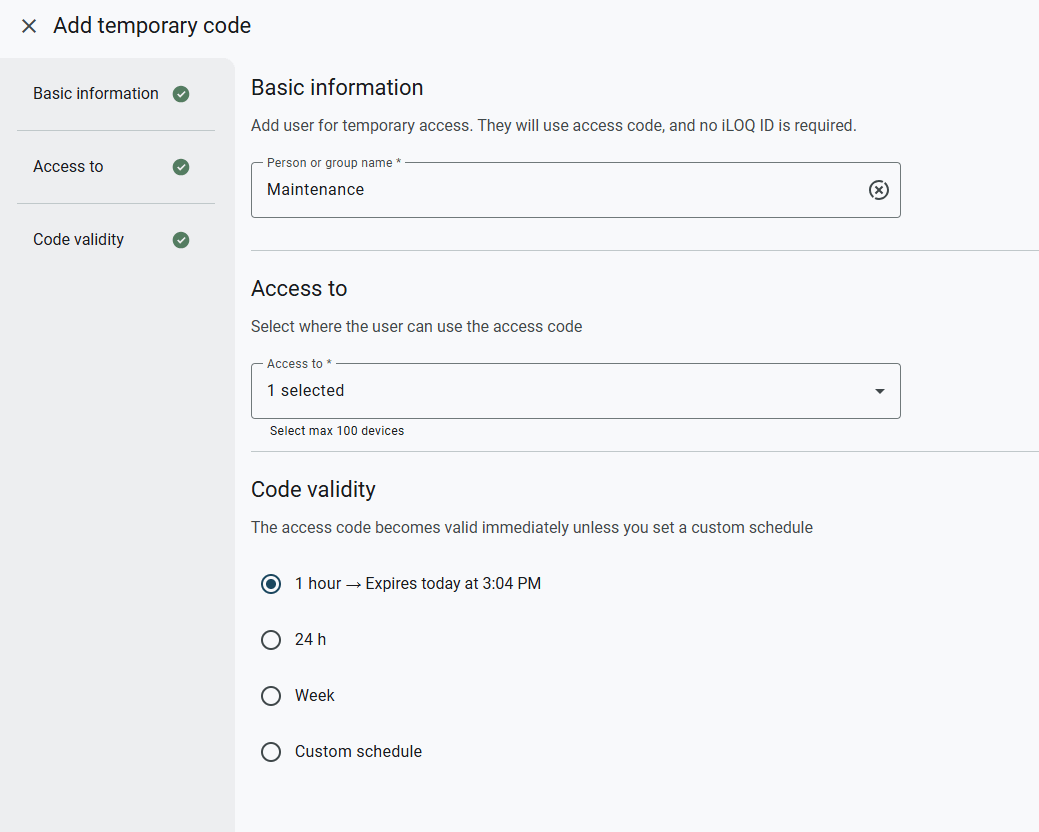
Add user with temporary access code
Select Users > Temporary codes > Add new
- Enter a name for the user (person or group name).
- Select the locking devices the code grants access to.
- Select a validity period for the code:
- 1 hour
- 24 h
- Week
- Custom schedule: Customize the validity period as needed.
- Select Confirm and generate code.
Note: The code must be shared with the user manually, for example via email or SMS.
Edit user with temporary access code
Select Users > Temporary codes
- Locate the user you want to edit from the user list.
- Click the user to open their details.
- In the user details panel, click Edit.
- Edit the required user information:
- Person or group name: Change the person’s or group’s name.
- Modify where the user has Access to.
- Generate a new access code, if required.
- Change the validity period.
- Select Save changes.
Remove user with temporary access code
Select Users > Temporary codes
- Locate the user you want to remove from the user list.
- Click the user to open their details.
- In the user details panel, click Remove.
- Confirm by selecting Remove again.
- PreviousAudit trails