Private premises
Private premises enable users to share access to their premises with others using the key sharing feature in the iLOQ App. Typical examples of private premises are apartments in residential buildings.
When adding premises, check the Private premises checkbox to mark the premises as private and enable access sharing for the users assigned to the premises. You can also change the private setting of existing premises. Note: The locks in the premises must be programmed before you can mark the premises as private.
Link user roles to private premises to provide access to shared areas, such as main entrances, storage areas, and other common facilities. Users assigned to the private premises are granted access to the locks in the private premises and to the locks associated with the linked user roles.
Private premises are identified by a dedicated icon  on the premises canvas. Hover over the premises to view the premises name, premises type, and whether access sharing is enabled.
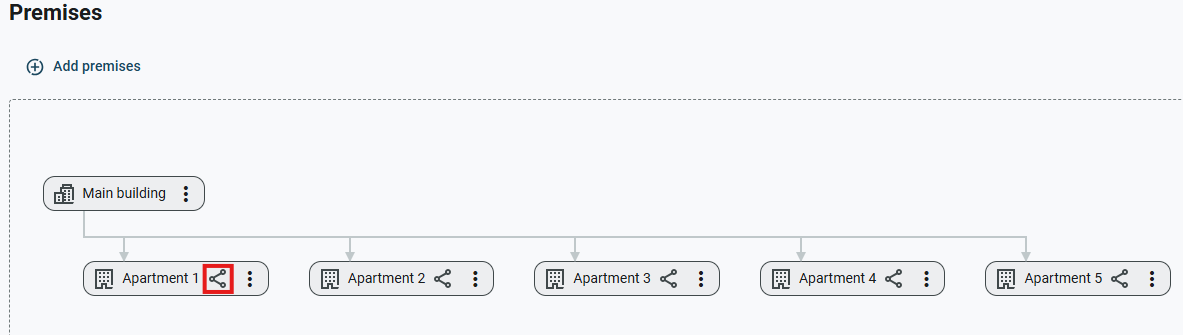
Select private premises on the canvas to open the Premises information panel. The panel contains the following sections:
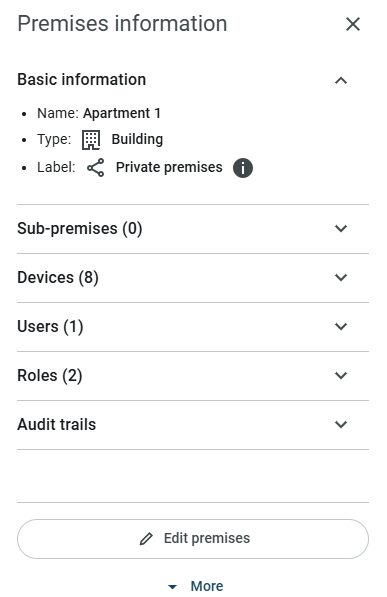
- Basic information: View the premises name, type, and label.
- Sub-premises: View the sub-premises of the selected premises.
- Devices: View the devices such as locks and online devices in the private premises, as well as devices accessible through linked user roles. The number of linked roles is shown, and the devices can be sorted by linked role.
- Users: View the users assigned to the private premises and their key sharing status.
- Roles: View the user roles linked to the private premises.
- Audit trails: View the latest events for the private premises.
Select Edit premises at the bottom of the panel to edit premises settings such as the premises type and name, change the private premises setting, or link or unlink user roles.
Select More to access additional actions:
- Add sub-premises: Add sub-premises to the selected premises.
- Move to: Move the selected premises to another location in the premises structure.
- View logs: View logs such as audit trails from the private premises.
Manage private premises
Manage and edit private premises in several ways, such as marking or unmarking premises as private, adding or removing users, and linking or unlinking user roles. The most common tasks related to managing private premises are instructed below:
Mark premises as private
- Select Premises from the main menu.
- Select
 on the premises you want to mark as private.
- Select Edit.
- Check the Private premises checkbox.
- Link user roles to the private premises by selecting them from the drop-down list.
- Select Save.
Remove private premises marking
- Select Premises from the main menu.
- Select on the premises you want to remove the private premises marking from.
- Select Edit.
- Uncheck the Private premises checkbox.
- Select Save.
Add users to private premises
- Select Premises from the main menu.
- Select the private premises you want to add a user to.
- In the Premises information panel that opens, type the name of the user in the Add user to private premises field.
- Select the name of the user.
The user is added to the private premises and is granted access to all the locks of the private premises and to the locks of any user roles linked to the private premises.
Remove users from private premises
- Select Premises from the main menu.
- Select the private premises you want to remove the user from.
- In the Premises information panel that opens, select Show next to the name of the user you want to remove from the private premises.
- Select Remove user from premises.
- Select OK to confirm.
The user is removed from the private premises. After removal, they no longer have access to the private premises or to any locks of roles linked to the private premises.
Link user roles to private premises
- Select Premises from the main menu.
- Select on the private premises you want to link user roles to.
- Select Edit.
- In the Linked role drop-down list, select the user roles you want to link to the private premises.
- Select Save.
Unlink user roles from private premises
- Select Premises from the main menu.
- Select on the private premises you want to unlink user roles from.
- Select Edit.
- In the Linked role drop-down list, select the user roles you want to unlink from the private premises.
- Select Save.
- PreviousPremises
- NextRemote unlocking