


Getting started
You can use iLOQ Web via desktop, laptop, tablet and smartphone.
iLOQ Web can be accessed from: web.iloq.com/en-US/login
Create iLOQ ID
You need to create an iLOQ ID to be able to log in to iLOQ Web. Your iLOQ ID allows you to access all iLOQ 5 Series+ services with just one user account.
Note: Check your inbox for the welcome email before creating your iLOQ ID.
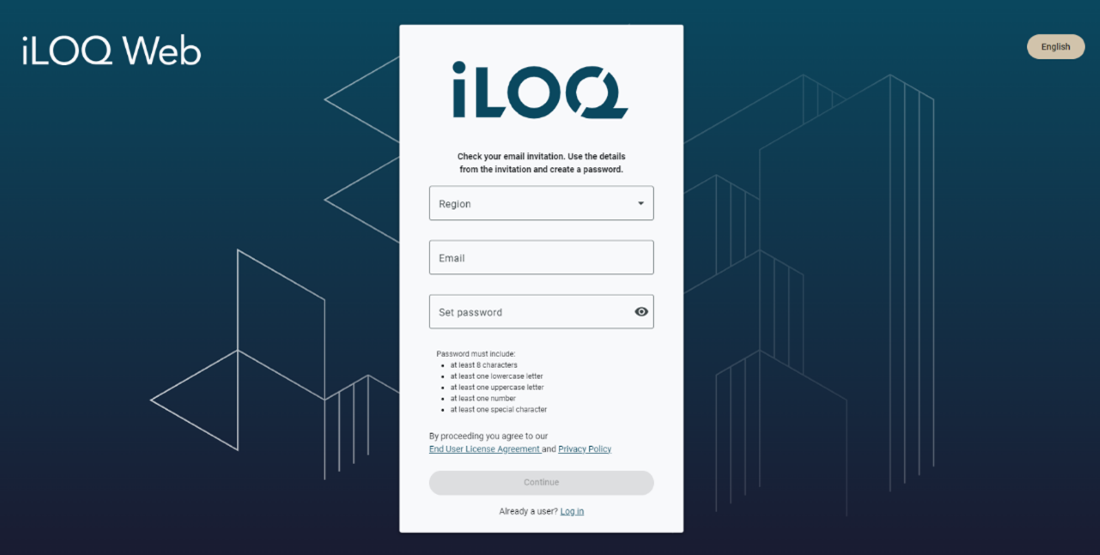
- Navigate to web.iloq.com/en-US/login
The login screen is opened.
- Select Sign up.
- Select your Region*. Check the correct region from your welcome email.
*Region indicates to which cloud data center location your information is stored. Note that you must use the region specified in your welcome email.
- Enter the email address to which you received the welcome email.
- Create a password.
- Select Continue.
- Enter the confirmation code sent to your email.
- Select Finish.
- Select a multifactor authentication method. Select SMS or Authentication app.
- Follow the on-screen instructions to finish the multifactor authentication.
After signing up you can log in to iLOQ Web.
Log in to iLOQ Web
- Navigate to web.iloq.com/en-US/login
- Select your Region.
- Enter your Email address and Password
- Select Log in.
Note: When logging in to the iLOQ Manager+, multifactor authentication is always required.
Note: If you have access to multiple customer systems, select which customer system you want to access after logging in.
SSO (Single-sign on)
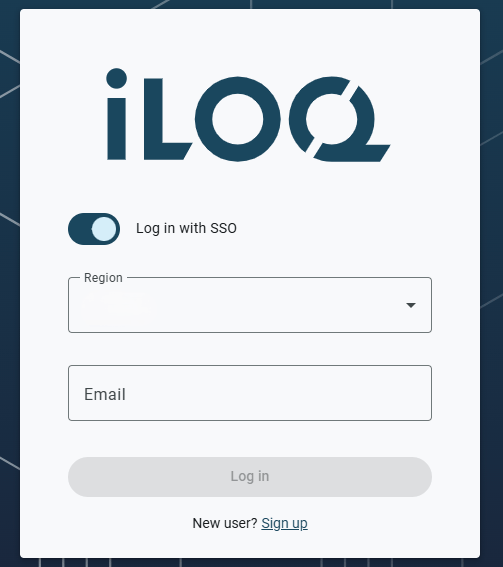
The single sign‑on (SSO) option lets you sign in to iLOQ Web using the same credentials you use for your organization’s other services.
NOTE: Single sign-on (SSO) is currently available only for selected customers. If SSO has been enabled for your organization, your company’s IT department will notify you.
Enable SSO
- Set the switch to On to enable the feature.
- Select your Region.
- Enter your email address.
- Select Log in.
- You’ll be redirected to the SSO login page to complete the authentication.
Reset password
- Navigate to web.iloq.com/en-US/login
The login screen is opened.
- Select Reset password.
- Enter your email address to receive a recovery code.
- Check your inbox for the code, and enter it and along with a new password.
- Tap Finish.
Your password has now been reset.
My Profile
You can view your account information from the My profile view. It can be found in the top right corner of the screen by clicking the profile icon (your initials).
You can also reset your multifactor authentication method if needed. After resetting, you will need to set it up again the next time you log in.
Change user interface language
The language of iLOQ Web can be changed at any time from the login screen, or from the user menu when logged in to iLOQ Web. The following languages are available:
- English (US)
- Danish (Dansk)
- German (Deutsch)
- Spanish (Español)
- French (Français)
- Italian (Italiano)
- Dutch (Nederlands)
- Norwegian (Norsk)
- Polish (Polski)
- Portuguese (Português)
- Slovak (Slovenčina)
- Slovenian (Slovenščina)
- Finnish (Suomi)
- Swedish (Svenska)
- Turkish (Türkçe)
Change language from the login screen
- Select the language selector in the top-right corner of login screen.
- Select your preferred language from the list.
- The user interface updates to the selected language.
Change language from your profile when logged in
- Select your profile in the top-right corner (your initials).
- Select Change language.
- Select your preferred language from the list.
- Select Save.
- The user interface updates to the selected language.
- PreviousBasic concepts
- NextUsers
