Selecting the User Interface Language

This section describes how to select the user interface language on iLOQ 5 Series Manager.

Proceed as follows.

  1. If iLOQ 5 Series Manager is running under an incorrect language, close the program.
  2. On Windows, select Start > All Programs > iLOQ > iLOQ 5 Series Manager.
  3. The default login screen is opened.
    Figure 1. Login Screen in Finnish
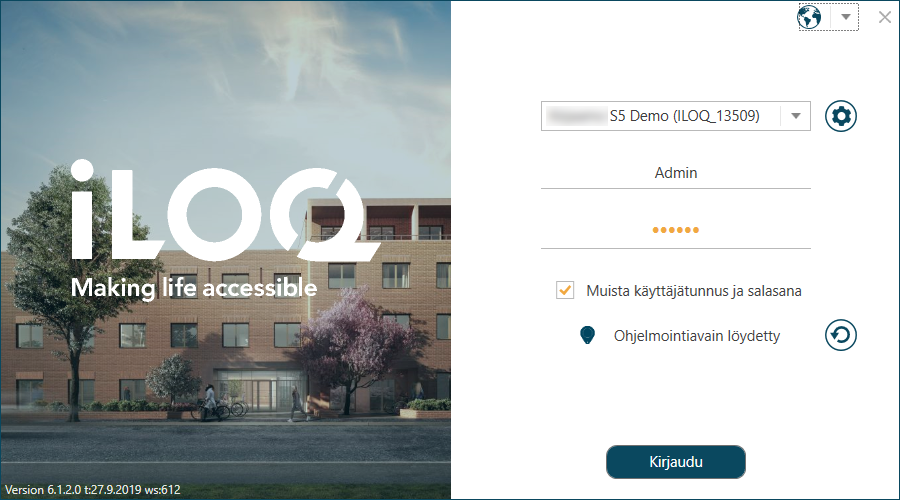
    Login Screen in Finnish

  4. Click the flag icon to open the language selection drop-down list.
    Figure 2. Selecting the Language
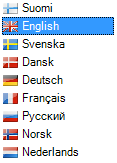
    Selecting the Language

  5. Select the desired language in the drop-down list.

    The login screen in the selected language is opened.

    Figure 3. Login Screen in the Selected Language
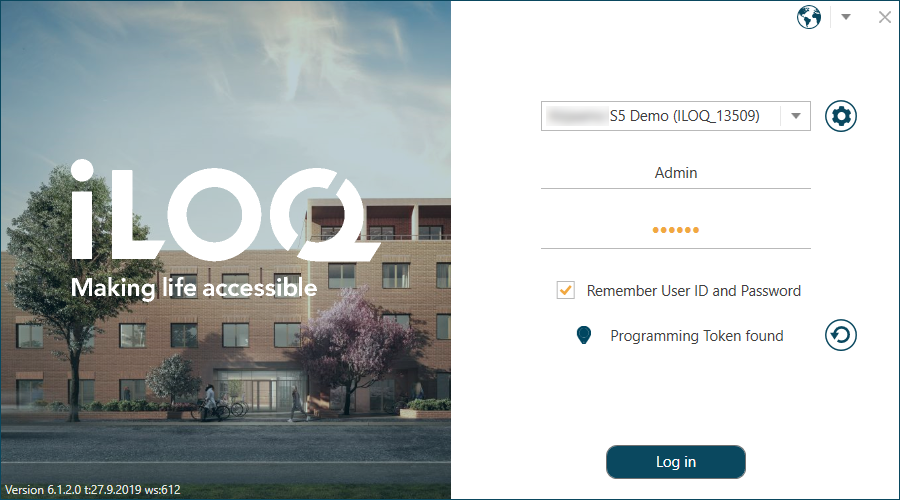
    Login Screen in the Selected Language

Can't find what you're looking for?

If you've lost your key or need a new key, please contact your property manager, maintenance company, or local iLOQ retailer. iLOQ does not manage its customers' locking systems, so we cannot provide assistance with them through the support request form below.